Getting the guest online
There are two ways to put a Windows CE guest on the internet: an NE2000 Ethernet PC Card bridged to your host's connection, or a dial-up modem over an emulated phone line. The NE2000 card is simpler and more reliable - try it first; use dial-up when the board has no PC Card slot or no NE2000 driver.
NE2000 PC Card
1. Insert the NE2000 Ethernet (RTL8019) card into a free PC Card slot.
Note
If a PC Card driver not found window appears, the guest has no NE2000 driver (or it is a CERF emulation bug) - this path will not work on that ROM.
2. Configure it, which depends on the guest:
Usually auto-configured with no prompt - a connection tray icon may appear, and you are online.
An NE2000 Compatible Ethernet Driver Settings window appears. Leave everything at its default (obtain an IP address via DHCP), click OK, and a tray icon may appear. The connection should work from there.
The card is detected automatically but needs the network assigned. Go to Settings → Connections tab → Connections, and set My network card connects to to The Internet. On newer versions, after opening Connections, go to Advanced → Select Networks and change everything to My Work Network.
Dial-up
1. Attach a modem in CERF
Pick whichever suits your board, and attach the modem in CERF:
- Built-in modem - click the COM icon in the status bar and choose Insert → Serial Modem.
- PC Card modem - click any PC Card slot in the status bar and choose Insert → Serial Modem.
2. Open the modem connection app in the guest
The path is nearly the same on every Windows CE version; the differences are only where the applet lives.
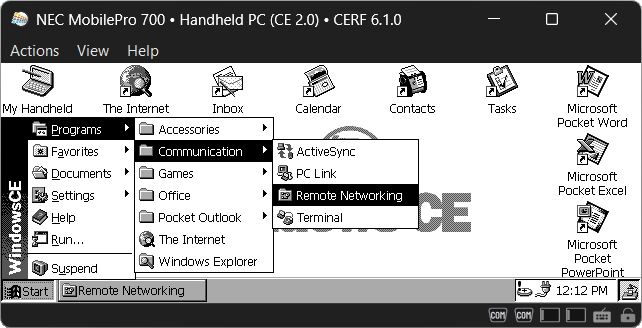
Start → Communications → Remote Networking.
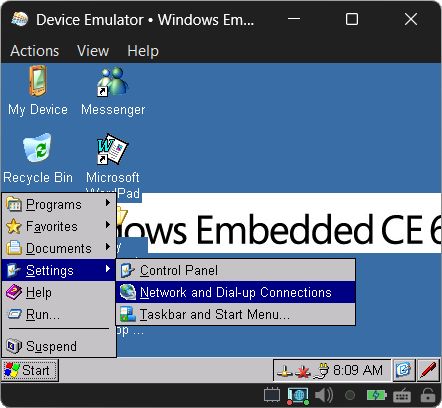
Start → Settings → Network and Dial-up Connections - it opens the same window as on older CE.
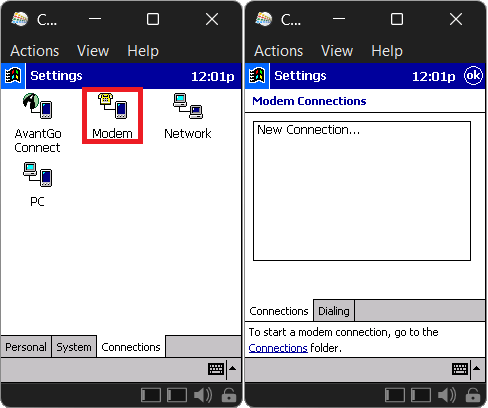
Start → Settings → Connections tab → Modem.
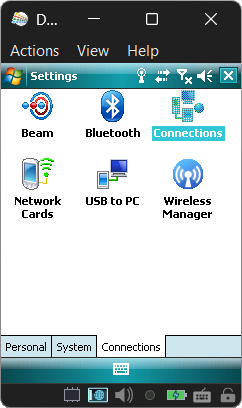
Start → Settings → Connections tab → Connections. On Windows Mobile 6.5+ the Start menu is full-screen, but the path is identical.
3. Make a new connection
Open Make New Connection (the modem one) and fill it with stock values - for the phone number,
just enter 1 and save.
For the device, pick the modem: usually Hayes Compatible on COM1, or CERF Virtual Modem if it is a PC Card. The exact name varies by guest; if in doubt, guess - there is rarely more than one.
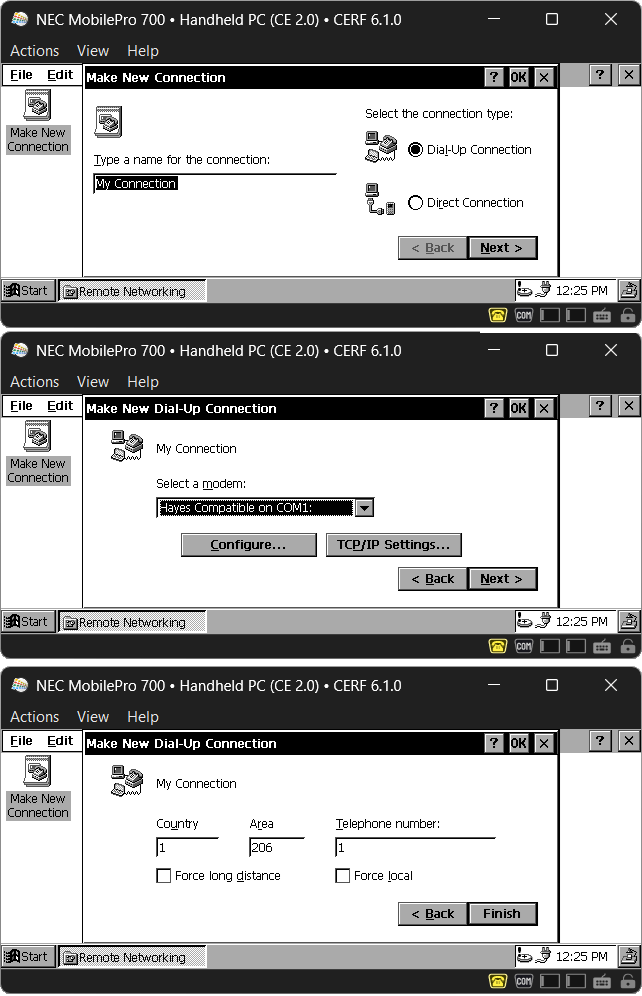
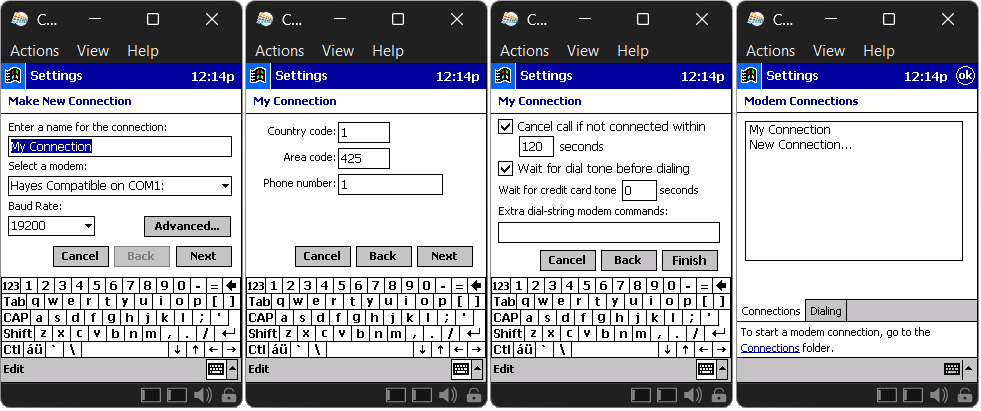
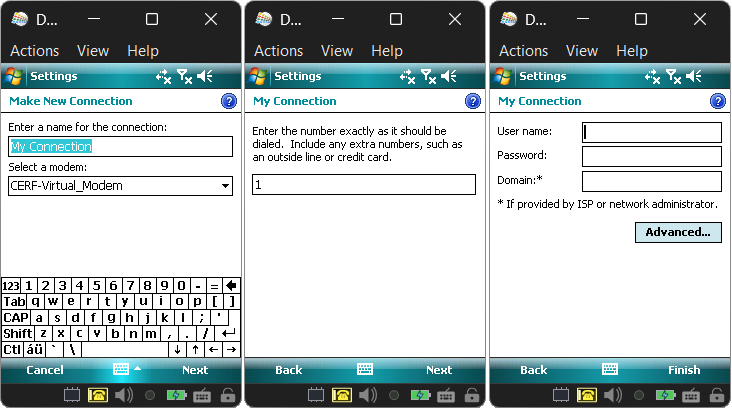
4. Dial and go online
Double-click your connection, dial, and you are ready to browse.
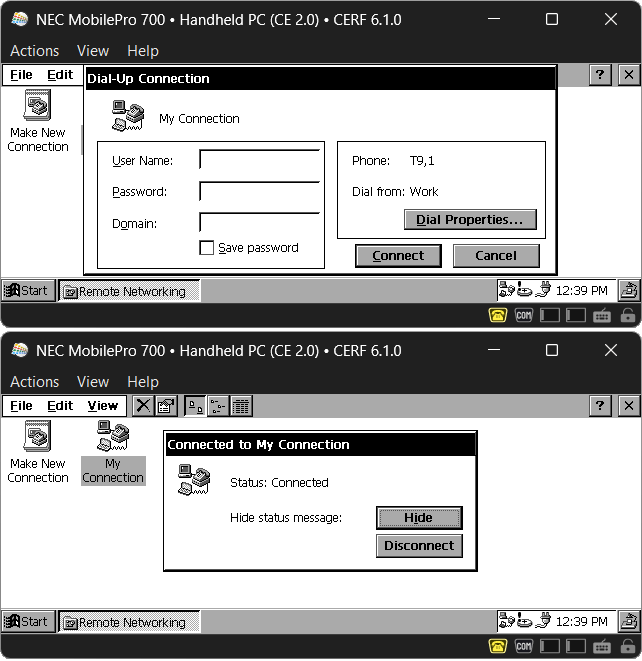
Open the Connections link in the Modem applet, then tap your connection and dial.
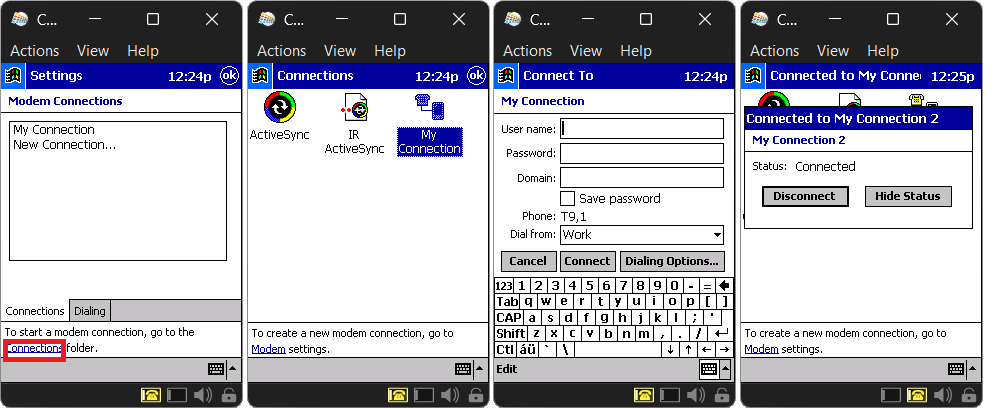
Just start browsing - the first request prompts you to dial.